Signing in to websites used to be as easy as filling in a username and a password. But lately, it’s started to feel more like a multiple choice exam. “Sign in with” buttons are becoming more popular, and it’s easy to see why.
These buttons allow you to leverage an existing account rather than creating a new one, with a unique password for each website. Yet, a pressing question remains: How do you recall which option you chose when you revisit a site?
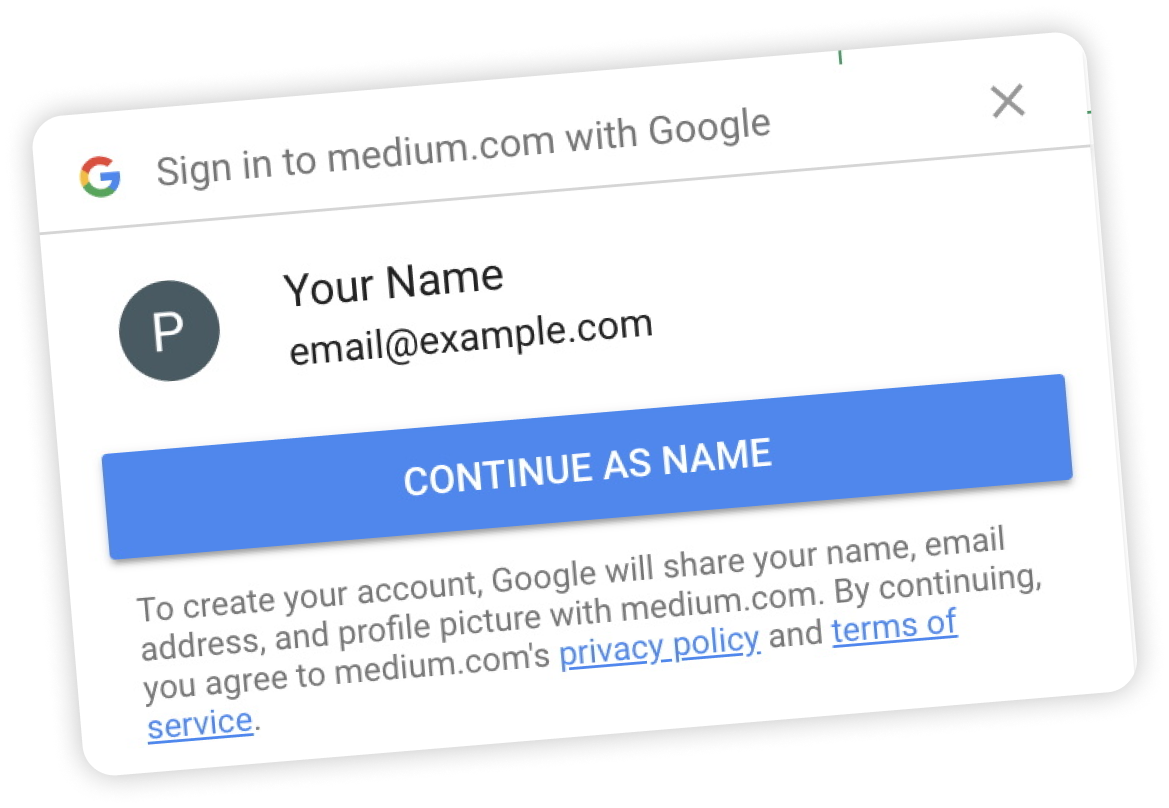
Since "Sign in with" was a new feature for password managers, we examined Google's approach with "Sign in with Google" to understand its strengths and weaknesses in relation to our goals.
Current password managers lack the ability to remember which Single Sign-On (SSO) provider users choose at different websites. This leads to confusion and frustration when users revisit a site, and can't recall their login method.
User interviews informed these stories, outlining desired functionalities for managing SSO logins in 1Password.
Empower users to seamlessly manage SSO logins within 1Password, eliminating the need to remember which provider they used for each website.
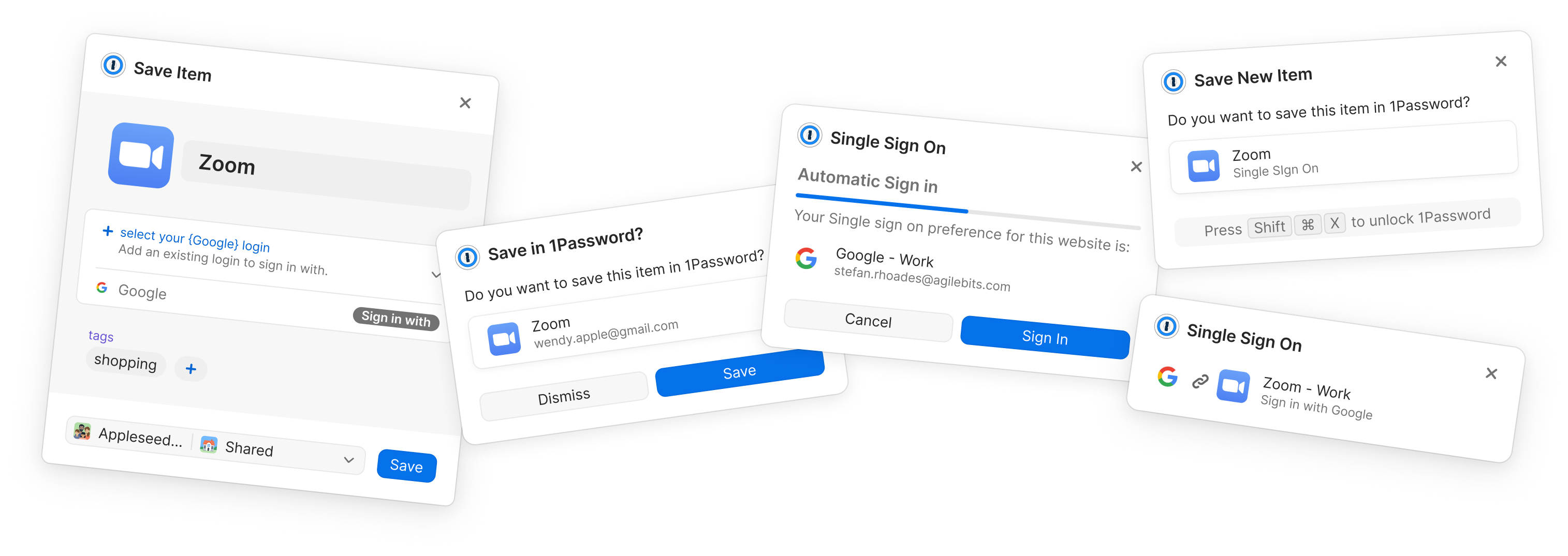
To streamline testing, I mapped user flows and experimented with visual representations. This proactive approach identified potential error scenarios and ensured focused research, maximizing valuable insights.

We launched this feature into a private beta. Our goal was to get feedback from our research community and refine. After a two week period, we sent out a survey to these users, and asked for their feedback. Overall the response was postive. This process did uncover some unknown bugs and a couple usability issues, but the main response was the lack of supported providers.
Because each provider has a different redirect and sign in flow, we have to manually set up each provider separately. After receiving this feedback, we launched a follow up questionnaire asking what providers would be desired. We tiered the responses and created a road map to have all ready for launch.
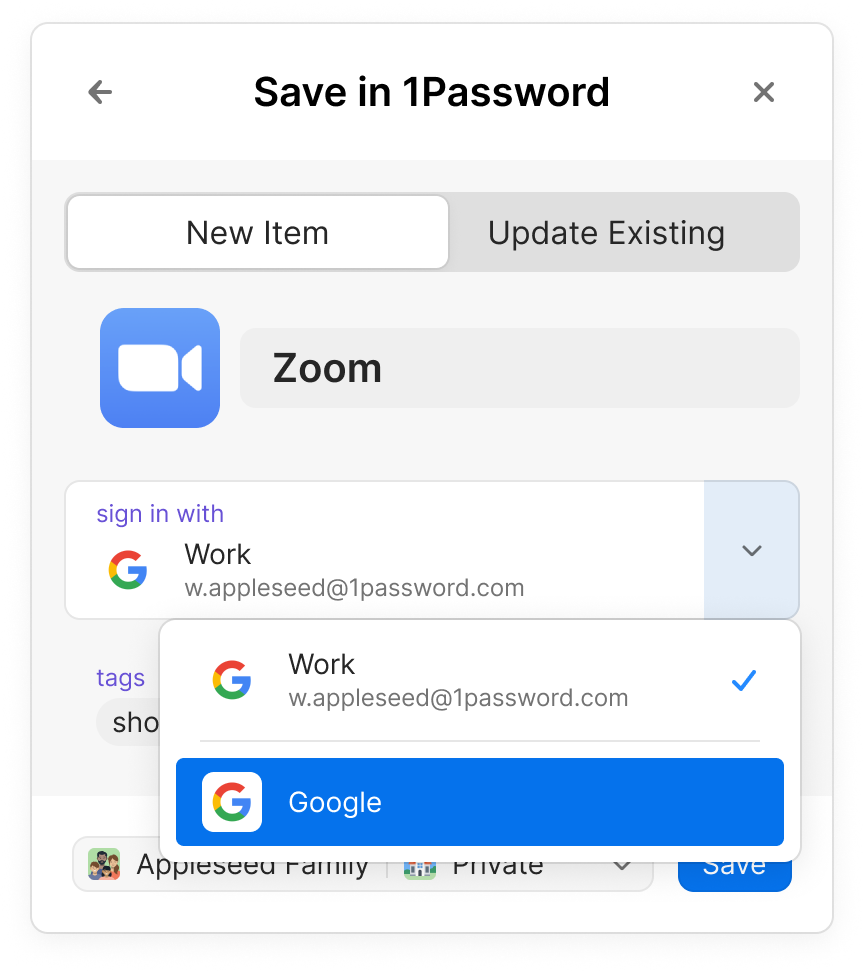
When a user creates a 'Sign in with' item, it is most effective if they associate this new item with an existing login. For instance, if you log into Zoom using your Google account, we encourage the linking of these items to facilitate automated sign-in requests. However, we recognize that there are scenarios where a user may not be able or inclined to do so.
The item might belong to a different account or may not even be saved in 1Password. To accommodate this unique situation, we offer users the option of saving just the provider used. This serves as a simple reminder for the user but lacks actionable functionality. Nonetheless, users retain the flexibility to edit this information at any time and establish the desired connections.
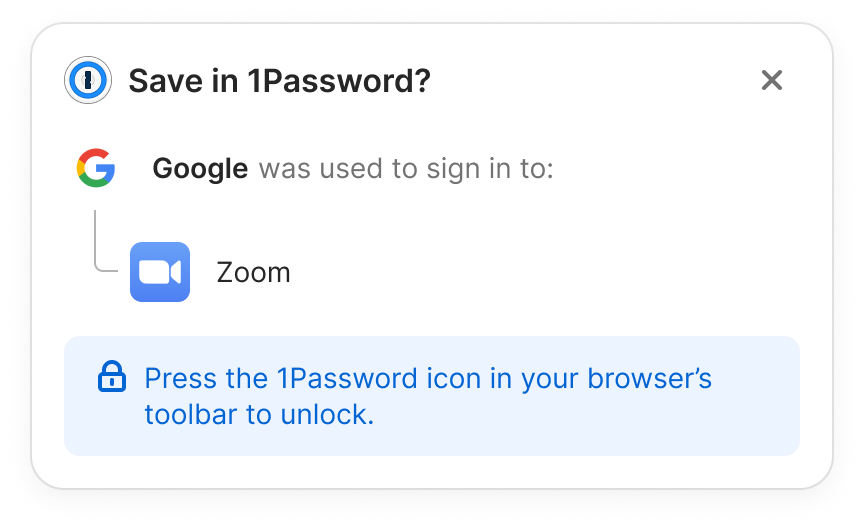
While utilizing the inline menu, unlocking is a prerequisite before any interactions can commence. However, this particular feature operates with a distinct approach. Users have the freedom to employ an SSO login at their discretion, without necessitating 1Password's direct involvement.
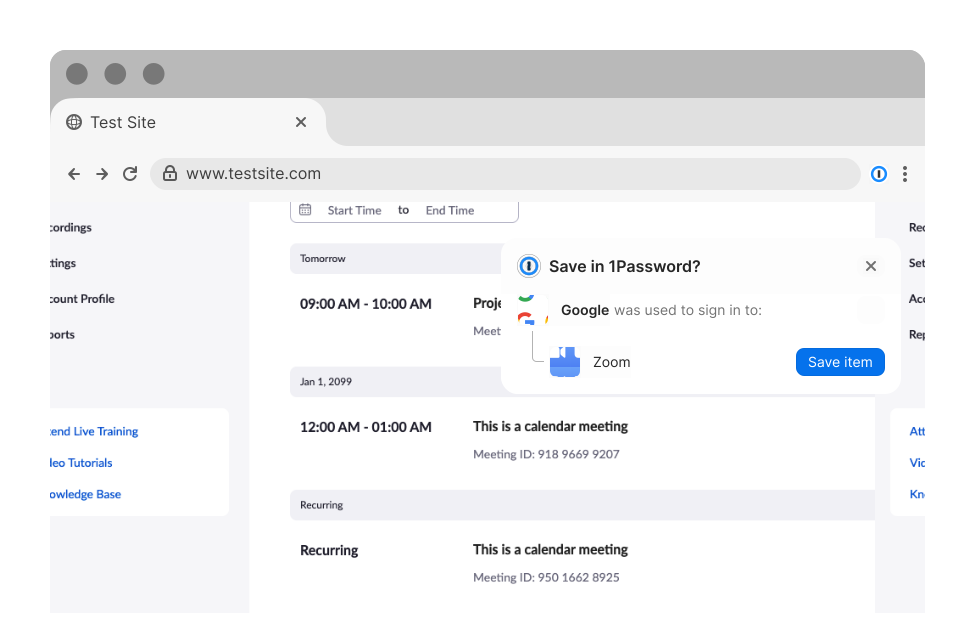
In light of this, we ask ourselves, how can we add value? To address this, when we detect SSO buttons on a page or recognize an SSO login attempt, we promptly display a notification. This notification encourages the user to unlock, enabling us to either securely save the credential or remind them of an existing one already stored in 1Password.
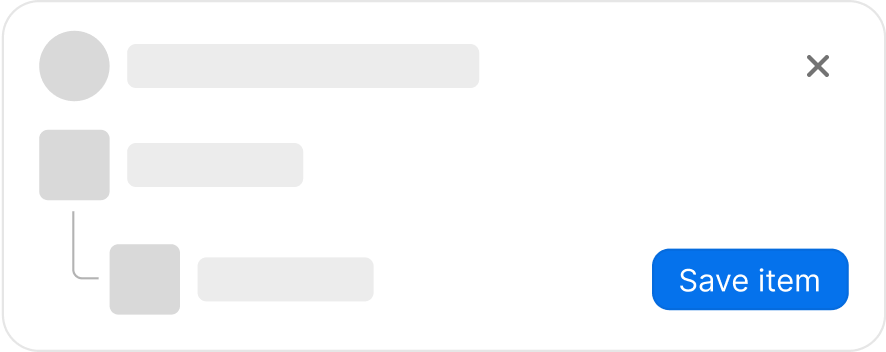
This feature marks a significant milestone in 1Password's history as it represents a pioneering move. Never before have we provided users with information directly within the context of a web page. Given the unique nature of this feature, seamless communication with the user within the webpage itself is imperative.

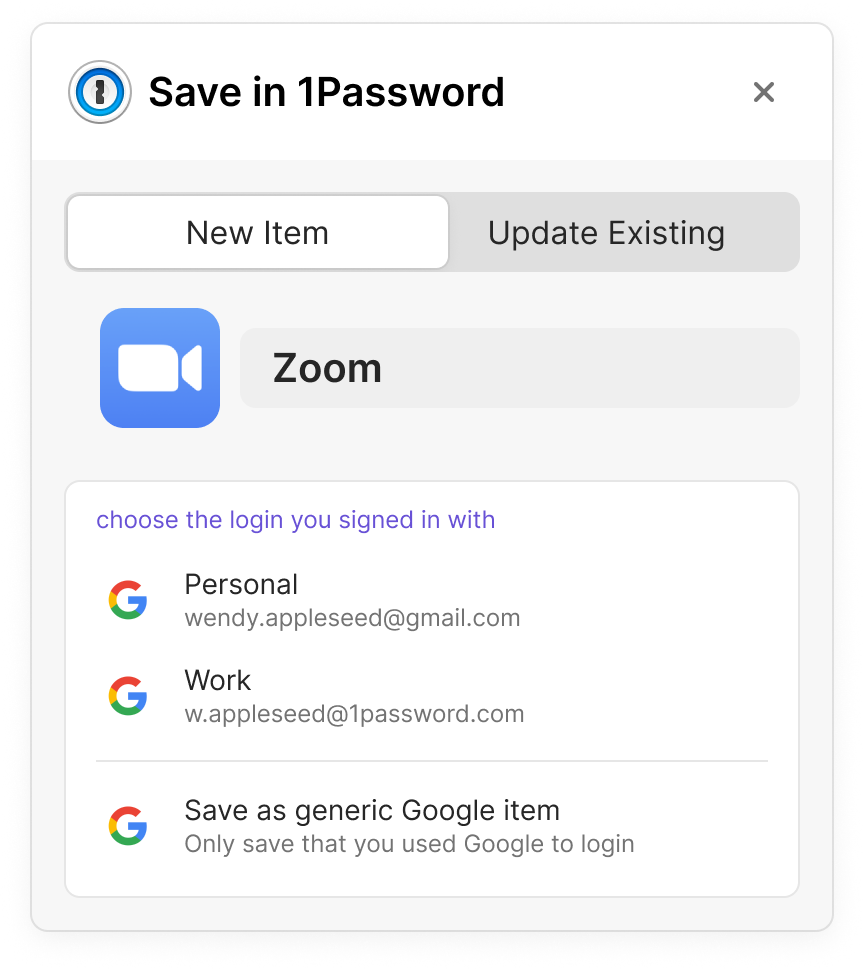
When a user possesses only one item associated with the URL used for signing in, we seamlessly default to that specific item for convenience. However, when multiple choices are available, a unique challenge arises.
Due to data privacy regulations, we are unable to automatically capture the email used for signing in. In such cases, we respectfully request the user's input to identify and select the correct login. Similar to the previous scenario, users also have the option to save the item in a more generic manner should they choose to do so.
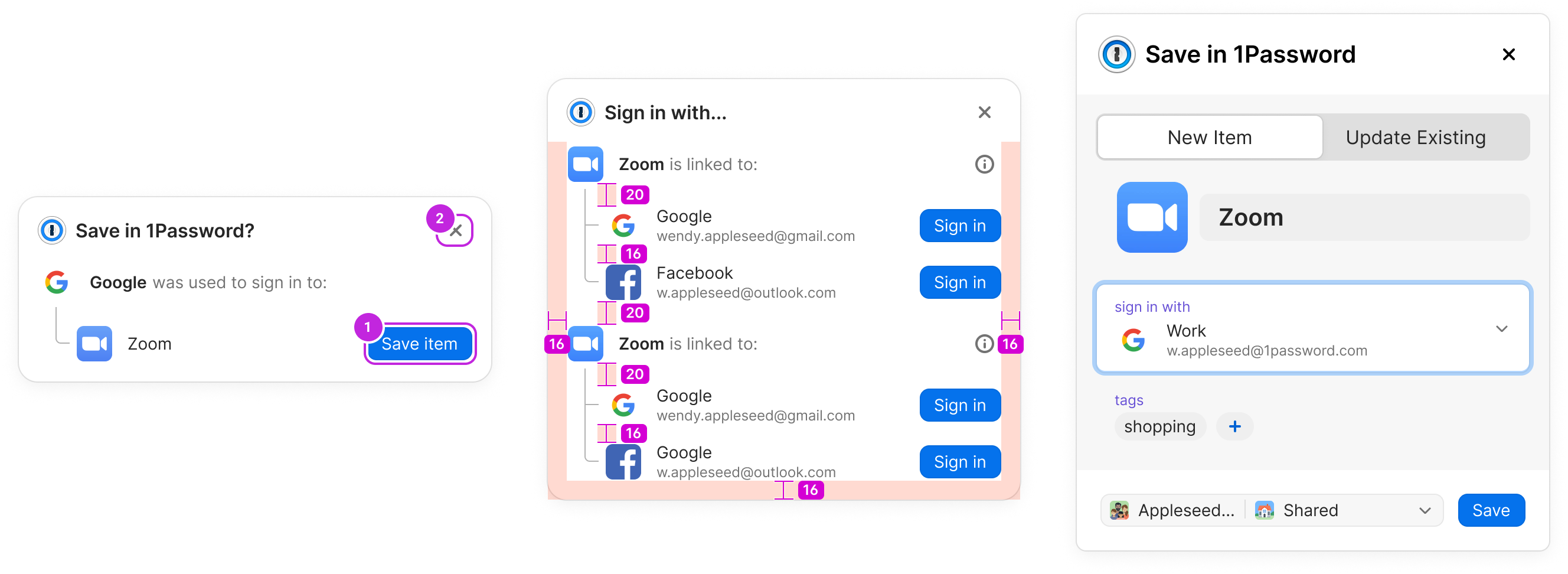
Since our feature involves integration directly within web pages, it naturally brought to light numerous edge cases. In this phase of the project, I collaborated closely with our team of developers to systematically identify and address the diverse array of scenarios that presented themselves.
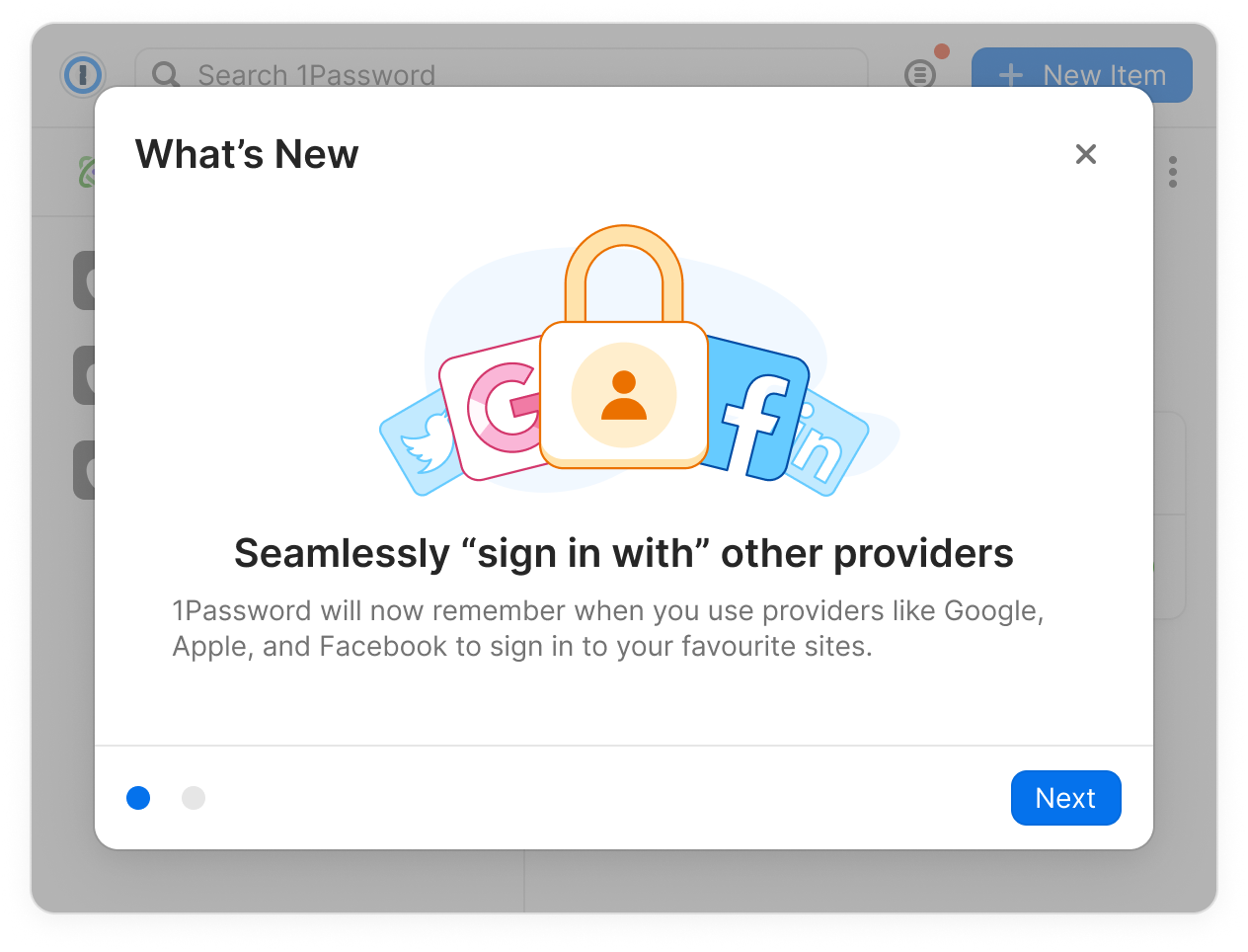
A recurring challenge we encountered in prior feature releases was our capacity to effectively onboard and communicate these changes to our users. In a concerted effort to diminish confusion and facilitate user adoption of the 'Sign in with' feature, we conceived a fresh approach—a "What's New" screen. This strategy proved remarkably successful and has now become the established norm for all forthcoming 1Password releases.
Sometimes our users they don’t want to interact with with the inline menu. To solve this currently, our users have to use the right click context menu to hide the inline menu on the specific page they are on. Alternatively they can navigate to their B5X settings view and blanket turn the feature off. Both current solutions are clunky & not discoverable.
This feature was launched along side our passkey feature. Our old save dialog did not support it. This new UI helped us become an early adopted of passkeys and deliver the new technology to our users.